How to Set Up a Smart Home Hub: Amazon Echo, Google Home, and Apple HomeKit
Beginner guide to choosing and setting up a smart home hub — comparing Echo, Google Home, and HomeKit, and connecting your first smart devices.
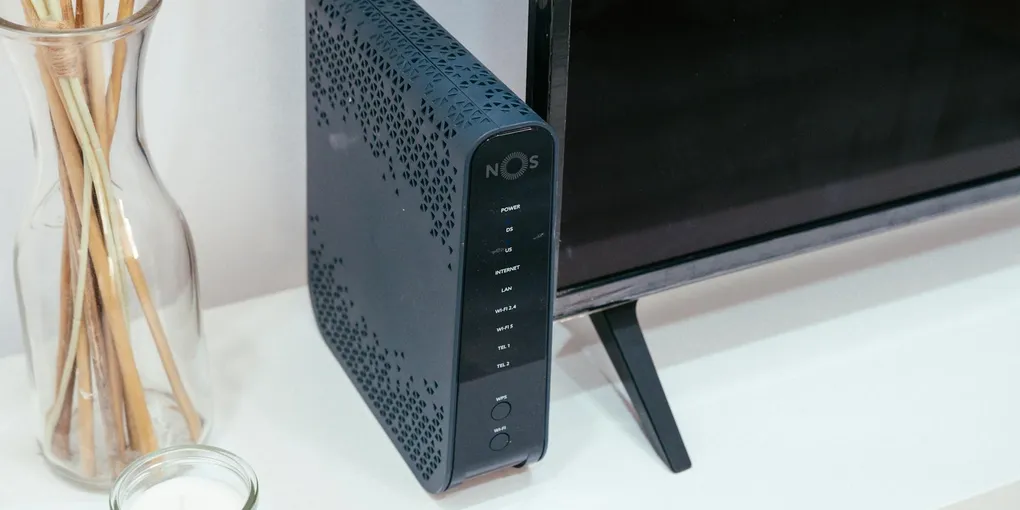
The single most important decision in building a smart home is not which light bulbs to buy — it is which platform to choose. Every device you add after that needs to be compatible with your platform.
The single most important decision in building a smart home is not which light bulbs to buy — it is which platform to choose. Every device you add after that needs to be compatible with your platform. Getting it right from the start saves you from discovering that your thermostat does not talk to your lights.
Choose your platform first. Then buy the hub. Then add devices.
Platform Comparison
| Feature | Amazon Alexa | Google Home | Apple HomeKit |
|---|---|---|---|
| Best for | Most homeowners | Android users | iPhone users |
| Device compatibility | Widest (thousands of devices) | Very broad | Narrower, growing with Matter |
| Voice assistant quality | Good | Excellent for questions | Good, Siri-based |
| Privacy | Moderate | Moderate | Strongest |
| App quality | Good | Good | Excellent |
| Entry-level hub cost | $30 (Echo Dot) | $50 (Nest Mini) | $99 (HomePod mini) |
| Local control without internet | Limited | Limited | Better than most |
The practical recommendation: If you use an iPhone and value privacy, go HomeKit. If you use Android or want the widest device selection at the lowest cost, go Alexa. If you are already deep in Google services, go Google Home.
What You Need
Regardless of platform, you need:
- A hub device — Echo, Google Nest Hub, or HomePod mini
- A smartphone with the platform app installed
- A 2.4 GHz or 5 GHz Wi-Fi network (most devices support both)
- An account — Amazon, Google, or Apple ID
You do not need a subscription for basic smart home functionality. Paid tiers exist but are optional.
Setting Up Your Hub
Amazon Echo
- Download the Alexa app on your phone.
- Plug in your Amazon Echo. The ring light will turn orange.
- In the Alexa app, tap Devices, then the + icon, then Add Device > Amazon Echo.
- Follow the prompts to connect it to your Wi-Fi. The process takes about three minutes.
- Once connected, the ring light turns blue and Echo says it is ready.
Google Home
- Download the Google Home app.
- Plug in your Google Nest Hub.
- Open the app, tap +, then Set up device > New device.
- Select your home and let the app find the Nest Hub automatically.
- Follow the prompts to connect to Wi-Fi and complete setup.
Apple HomeKit
- Your hub is a HomePod mini, Apple TV 4K, or an iPad left at home.
- Plug in the HomePod mini. A setup prompt will appear on your nearby iPhone automatically.
- Hold your iPhone near the HomePod mini and follow the on-screen instructions.
- The Home app on your iPhone becomes your primary controller.
Adding Your First Devices
Start simple. A smart plug is the best first device for any platform — it works with any lamp or appliance, costs $10 to $15, and teaches you the device-pairing process without any wiring.
The recommended progression for new smart homes:
- Smart plug — Easiest setup, immediate usefulness (control any lamp or coffee maker)
- Smart bulbs — A smart light bulb starter kit typically includes two to four bulbs and a hub bridge
- Smart thermostat — Bigger upfront cost but pays back in energy savings; see our guide on how to install a smart thermostat
- Smart lock or doorbell — See our guides on smart locks and smart doorbells
To add any device in the app:
- Open your platform app (Alexa, Google Home, or Apple Home).
- Tap + or Add Device.
- Select the device type or scan a QR code on the device.
- Put the device in pairing mode (usually by holding a button until a light flashes).
- The app finds the device and walks you through connecting it to Wi-Fi.
- Name the device and assign it to a room.
Creating Routines and Automations
Routines are where smart homes become genuinely useful. A routine is a trigger (time, voice command, or sensor) that sets off a sequence of actions.
Useful starter routines:
- Good Morning — At 7:00 AM, turn on bedroom lights to 50%, start the coffee maker smart plug, and read the weather
- Leaving Home — When you say “Alexa, goodbye,” turn off all lights and lower the thermostat to 65°F
- Movie Mode — Say “Hey Google, movie time” to dim the living room lights to 20% and turn on the TV
- Bedtime — At 10:30 PM, turn off all lights except the bedroom and lock the front door
To create a routine:
- Alexa: Tap More > Routines > + > set trigger and actions
- Google Home: Tap Routines > + > choose starter and add actions
- Apple HomeKit: Open Home app > tap the house icon > Automation > + > choose trigger
Wi-Fi Considerations for Smart Homes
Every smart device you add is another node on your Wi-Fi network. Most home routers handle 20 to 30 devices fine. At 40 or more devices, older routers start to struggle — you will see devices going offline randomly or responding slowly.
A mesh Wi-Fi router system solves two problems at once: it extends coverage to dead zones (where smart devices near the garage or basement lose signal) and handles more simultaneous connections than a single router.
If devices in one part of your home work reliably but devices in another area drop offline frequently, a mesh system will fix it.
Two additional tips:
- Most smart home devices prefer 2.4 GHz networks over 5 GHz because 2.4 GHz has longer range. If your router broadcasts both on the same network name, this is handled automatically. If they have separate names, connect smart devices to the 2.4 GHz network.
- Keep your router firmware updated. An outdated router causes more smart home problems than bad devices do.
Related Reading
- How to Install a Smart Thermostat
- How to Install a Smart Lock
- How to Install a Smart Doorbell
- Best Smart Thermostats
- Best Home Security Cameras — cameras to pair with your smart home hub
- Platform Comparison
| Feature | Amazon Alexa | Google Home | Apple HomeKit | |---|---|---|---| | Best for | Most homeowners | Android users | iPhone users | | Device compatibility | Widest (thousands of devices) | Very broad | Narrower, growing with Matter | | Voice ass...
- Adding Your First Devices
Start simple. A smart plug is the best first device for any platform — it works with any lamp or appliance, costs $10 to $15, and teaches you the device-pairing process without any wiring.
- Creating Routines and Automations
Routines are where smart homes become genuinely useful. A routine is a trigger (time, voice command, or sensor) that sets off a sequence of actions.
- Wi-Fi Considerations for Smart Homes
Every smart device you add is another node on your Wi-Fi network. Most home routers handle 20 to 30 devices fine. At 40 or more devices, older routers start to struggle — you will see devices going offline randomly or responding slowly.
Free: 10-Point Home Maintenance Checklist
Prevent costly repairs with this seasonal checklist. Save hundreds every year by catching problems early.
Your checklist is ready!
Open Checklist →Something went wrong. View the checklist here.