How to Fix Under Cabinet Lights in 5 Minutes (Bulb, Driver, or Wiring)
Most under-cabinet light failures are a burned-out bulb ($3–$8) or a tripped LED driver (free reset). Fix it in 5 minutes — no wiring skills needed.
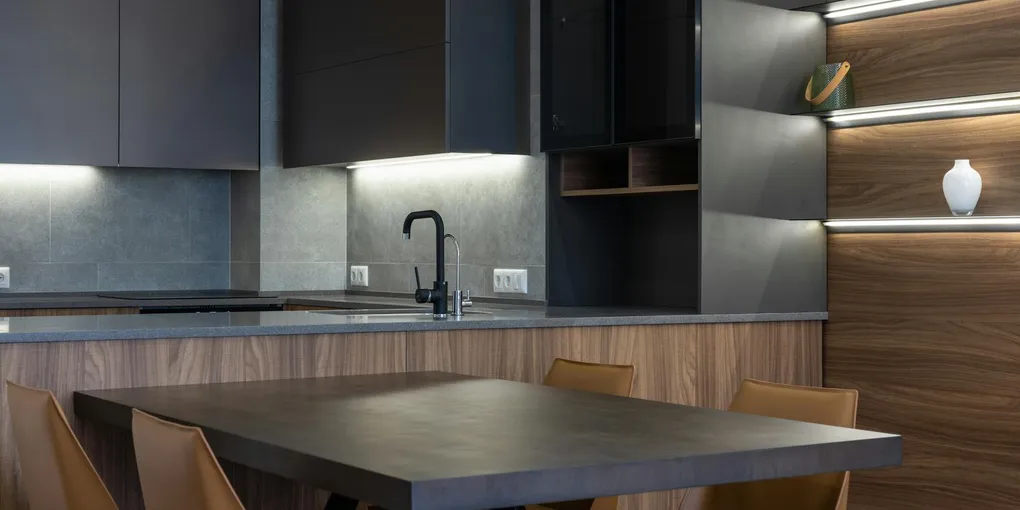
Under cabinet lighting adds both task lighting and ambiance to a kitchen, but a dark fixture is frustrating and difficult to diagnose if you have never worked with this type of light before.
Under cabinet lighting adds both task lighting and ambiance to a kitchen, but a dark fixture is frustrating and difficult to diagnose if you have never worked with this type of light before. The good news is that the three most common failures — a dead bulb, a tripped driver, and a wiring issue — are all straightforward to fix without an electrician in most cases.
What You Need
- Replacement G4 or GU10 LED bulbs — match the base type printed on your existing bulb; most puck lights use G4 bi-pin or GU10 bases
- Replacement LED driver — match the wattage output printed on your existing driver label
- LED-compatible dimmer switch — required if your current dimmer causes flickering or buzzing
- LED under cabinet light strip kit — for full fixture replacement or fluorescent-to-LED upgrade
- Flathead and Phillips screwdrivers
- Non-contact voltage tester
- Wire stripper
- Wire nuts or push-in wire connectors
- Multimeter (optional but helpful for diagnosis)
- Ladder or step stool
- Electrical tape
Step 1: Identify Your Fixture Type
Before anything else, determine what kind of under cabinet lighting you have:
- Plug-in puck or strip lights: These run on low voltage from a wall adapter that plugs into a standard outlet. The driver is the plug-in transformer.
- Hard-wired puck or strip lights: Power comes from a junction box inside the cabinet. A remote driver box converts 120V to low voltage for the LEDs.
- Hard-wired fluorescent lights: A ballast box inside the fixture powers a T4 or T5 fluorescent tube.
- Line-voltage puck lights: Some older under cabinet puck lights run directly on 120V without a separate driver — they use standard GU10 or other bulbs.
Knowing your type tells you immediately which component to check first.
Step 2: Turn Off Power and Test
Plug-in lights: Unplug the power adapter from the wall outlet.
Hard-wired lights: Turn off the circuit breaker that controls the under cabinet lights. Use a non-contact voltage tester to confirm power is off at the fixture — hold the tester near the wiring connection point and verify no signal before touching any wires.
Step 3: Check the Simplest Cause First
For plug-in systems:
- Check that the power adapter is fully seated in the outlet.
- Plug a phone charger or lamp into the same outlet to confirm the outlet is live.
- Check the adapter’s output cable connection at the first puck or strip in the chain — these connections sometimes work loose.
- If the adapter has a built-in reset button or inline fuse, check and reset or replace it.
For hard-wired systems with a remote driver:
- Locate the driver box inside the cabinet. It is usually mounted near the back wall or at the side.
- Look for a small reset button on the driver. Press and hold for 5 seconds — some drivers trip like a breaker when overloaded.
- Read the label: note the output wattage and voltage. This is your replacement spec if the driver has failed.
Step 4: Replace Burned-Out Bulbs
For fixtures with replaceable bulbs (puck lights with G4 or GU10 bases):
G4 bi-pin bulbs:
- Open the puck light lens by twisting counterclockwise or prying gently at the seam with a flathead screwdriver.
- The G4 bulb slides straight out of its socket — pull gently along the axis of the two pins.
- Insert the replacement G4 LED bulb, aligning the two pins with the socket holes, and push until seated.
- Reinstall the lens.
GU10 bulbs:
- Push the bulb in slightly, then turn counterclockwise until the tabs release (bayonet-style).
- Pull the bulb straight out.
- Insert the new GU10 LED bulb, push in, and turn clockwise until the tabs lock.
Always match the wattage and color temperature (2700K for warm white, 4000K for neutral) of the original bulb.
Step 5: Replace a Failed LED Driver
If the bulbs are fine (test them in another socket) but the lights are completely dead, the driver has likely failed.
- Locate the driver box and photograph the wire connections before touching anything — this makes reassembly straightforward.
- Note the label: output voltage (typically 12V DC or 24V DC) and output wattage.
- Disconnect the driver’s input wires (from the house 120V circuit) from the wire nuts. Keep the black, white, and ground wires separate.
- Disconnect the driver’s output cable from the LED fixture wiring.
- Install the replacement driver in the same location, reconnecting black-to-black, white-to-white, and ground-to-ground on the input side.
- Reconnect the output cable to the LED fixture.
- Restore power at the breaker and test the lights.
Step 6: Fix a Wiring Connection Issue
If some lights in the chain work and others do not, a loose connection between fixtures is the cause.
- Turn off power and verify with the voltage tester.
- Under cabinet puck and strip lights are typically daisy-chained with quick-connect cables between each fixture.
- Trace the chain from the working fixture to the first dark one. Unplug and firmly reseat the connector between them.
- Inspect the connector pins for corrosion — a green or white residue on pins indicates oxidation. Clean with a pencil eraser or fine sandpaper and reconnect.
- For hard-wired wire nut connections, unscrew each wire nut, straighten the wire ends, and reconnect them with a fresh wire nut.
Step 7: Replace an Incompatible Dimmer Switch
If the lights flicker, buzz, or dim unevenly, the dimmer is almost certainly not rated for LED loads.
- Turn off the circuit breaker for the switch circuit.
- Remove the switch plate and pull the switch from the box.
- Photograph the existing wiring.
- Install an LED-compatible dimmer, connecting the same wires to the matching terminals (line, load, ground). Many LED dimmers also have a minimum load adjustment screw on the side — set it to the lowest position for light loads.
- Restore power and test. Most flickering disappears immediately with a compatible dimmer.
Step 8: Upgrade Fluorescent to LED
If you have an older fluorescent under cabinet fixture that is failing:
- Remove the fluorescent tube by rotating it 90 degrees and pulling the pins from their sockets.
- Remove the fixture from under the cabinet (usually 2–4 screws).
- Install a new LED strip or puck light kit, connecting it to the same junction box wiring.
- LED fixtures are a direct upgrade: brighter, longer-lasting, and with no flicker or humming from a ballast.
Prevent Future Problems
- Use LED bulbs and strips rated for enclosed fixtures if your puck lights have lenses — heat buildup shortens LED life in poorly ventilated fixtures.
- Verify your dimmer switch is labeled LED-compatible before installation.
- Check connector connections at the start of each year and reseat any that feel loose.
Related Reading
- How to Install a Light Switch
- How to Install Kitchen Cabinet Lighting
- How to Fix an Electrical Outlet
- Identify Your Fixture Type
Before anything else, determine what kind of under cabinet lighting you have:
- Turn Off Power and Test
Plug-in lights: Unplug the power adapter from the wall outlet.
- Check the Simplest Cause First
Check that the power adapter is fully seated in the outlet.
- Replace Burned-Out Bulbs
For fixtures with replaceable bulbs (puck lights with G4 or GU10 bases):
- Replace a Failed LED Driver
If the bulbs are fine (test them in another socket) but the lights are completely dead, the driver has likely failed.
- Fix a Wiring Connection Issue
If some lights in the chain work and others do not, a loose connection between fixtures is the cause.
Free: 10-Point Home Maintenance Checklist
Prevent costly repairs with this seasonal checklist. Save hundreds every year by catching problems early.
Your checklist is ready!
Open Checklist →Something went wrong. View the checklist here.